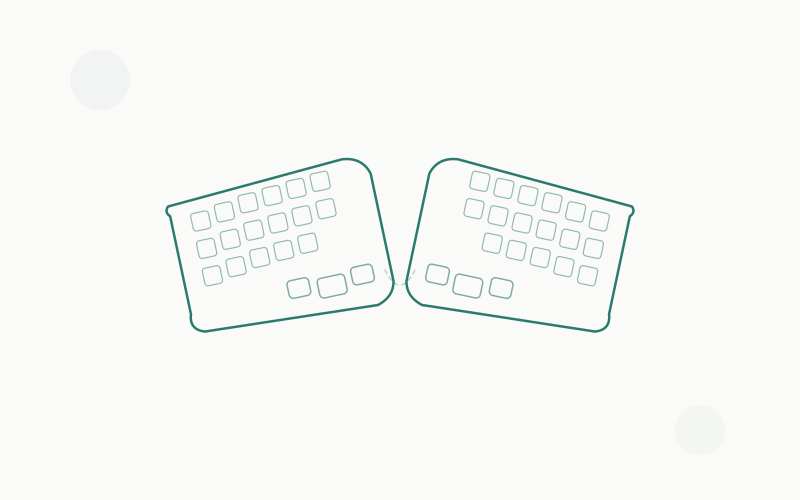
If you type for more than four hours a day and your wrists hurt, you don’t have a willpower problem — you have an equipment problem. (And if your whole desk setup needs work, start with our ergonomic home office setup guide.)
Standard keyboards force your wrists into pronation (rotated palms-down) and ulnar deviation (hands angled outward). Do that eight hours a day, five days a week, for years, and you’re looking at carpal tunnel syndrome, tendinitis, or repetitive strain injury (RSI). It’s not a question of if — it’s when.
An ergonomic keyboard won’t magically cure existing damage, but it can dramatically reduce the strain that causes it. The right keyboard keeps your wrists neutral, your shoulders relaxed, and your fingers moving in natural patterns instead of contorted ones.
The problem? “Ergonomic” is a marketing buzzword slapped on everything from slightly curved keyboards to alien-looking split contraptions. Some actually help. Some are just regular keyboards with a wavy keycap layout.
We tested 7 keyboards that genuinely address wrist pain — from mainstream options that feel familiar on day one to split keyboards that’ll take a week to learn but might change your life.
Quick Comparison Table
| Keyboard | Type | Split? | Tenting? | Connectivity | Switches | Price Range |
|---|---|---|---|---|---|---|
| Kinesis Advantage360 Pro | Contoured split | Full split | Adjustable | Bluetooth / USB-C | Mechanical (Cherry MX) | ~$449 |
| ZSA Moonlander Mark I | Columnar split | Full split | Adjustable | USB-C (wired) | Mechanical (hot-swap) | ~$365 |
| MoErgo Glove80 | Contoured split | Full split | Built-in | Bluetooth / USB-C | Low-profile (Kailh Choc) | ~$425 |
| Logitech Ergo K860 | Curved one-piece | Fixed split | Fixed tilt | Bluetooth / USB dongle | Membrane (scissor) | ~$120–$130 |
| InCase Sculpt Ergonomic | Curved one-piece | Fixed split | Removable riser | Wireless USB | Membrane (scissor) | ~$120 |
| Perixx Periboard-512 | Curved one-piece | Fixed split | No | Wired USB | Membrane | ~$40–$50 |
| Kinesis Freestyle Edge RGB | Flat split | Full split | Optional kit | Wired USB | Mechanical (Cherry MX) | ~$200–$220 |
Detailed Reviews
1. Kinesis Advantage360 Pro — Best Overall for Wrist Pain Relief
If wrist pain is ruining your productivity and you’re willing to invest in a real solution, the Advantage360 Pro is the most complete ergonomic keyboard money can buy. It addresses every major cause of wrist strain: pronation, ulnar deviation, finger extension, and thumb overuse.
Key specs:
- Layout: Split, contoured keywells with columnar key arrangement
- Split: Fully separable halves connected by optional bridge or used independently
- Tenting: Adjustable (0°, 10°, 15° with included tent kit)
- Switches: Cherry MX Brown (tactile) or Cherry MX Silent Red (linear)
- Connectivity: Bluetooth 5.0 (connects to 3 devices) — fully wireless
- Programmability: Open-source ZMK firmware — fully customizable via GUI or code
- Battery: Rechargeable — lasts weeks between charges
- Warranty: 2 years
The contoured keywells are the Advantage360’s secret weapon. Instead of flat rows of keys, each half has a curved bowl that follows the natural arc of your fingers. Your fingers drop down into the keys instead of stretching across a flat plane. This eliminates the finger extension that’s a major contributor to wrist and forearm tension.
The thumb clusters move Backspace, Delete, Enter, and Space to your thumbs — your strongest digits — instead of overloading your weakest (pinkies).
Tenting tilts each half so your hands rest at a natural angle rather than flat on the desk, reducing pronation. The included tent kit offers three angles, and third-party solutions push it even further.
The learning curve is real. If you’ve never used a columnar or contoured keyboard, expect 1-2 weeks of slower typing before you’re back to speed. Most users report full adaptation within 3-4 weeks, and many say they can never go back to flat keyboards.
Pros:
- The most ergonomically complete keyboard available
- Contoured keywells eliminate finger extension strain
- Fully wireless with weeks of battery life
- Open-source firmware — customize everything
- Thumb clusters reduce pinky overuse
- Adjustable tenting included
Cons:
- Steep learning curve (2-4 weeks to full speed)
- Expensive — a significant investment
- Columnar layout is hard to switch back from
- Only 2-year warranty for a premium product
- Not ideal for gaming (no traditional arrow key cluster)
Best for: Developers, writers, and heavy typists with chronic wrist pain who are ready to invest in a long-term solution and tolerate a learning curve.
2. ZSA Moonlander Mark I — Best Customizable Split Keyboard
The Moonlander is what happens when keyboard nerds build an ergonomic keyboard. It’s endlessly customizable — the layout, the switches, the tenting angle, even the firmware — all designed to be tweaked until it fits your hands perfectly.
Key specs:
- Layout: Split, columnar (ortholinear)
- Split: Fully separable halves
- Tenting: Adjustable via built-in thumb cluster wings + optional Platform accessory
- Switches: Hot-swappable mechanical (choose your switch at purchase, swap anytime)
- Connectivity: USB-C (wired only)
- Programmability: Oryx configurator (browser-based GUI) + QMK firmware
- Keys: 72 keys per keyboard
- RGB: Per-key RGB backlighting
The Moonlander’s standout feature is the Oryx configurator — a visual, browser-based tool that lets you remap every single key, create layers, set macros, and even assign different functions to tap vs. hold on the same key. No coding required. You click, drag, and flash.
For wrist pain specifically, the Moonlander’s full split design lets you position each half at shoulder width, eliminating ulnar deviation. The columnar layout aligns keys vertically with your finger lengths (instead of the staggered rows on normal keyboards). The adjustable wing can be set for tenting, and the optional Platform accessory ($112) provides a solid tented base.
Hot-swappable switches mean you can try different switch types without buying a new keyboard. Start with light linear switches (less finger effort) and experiment from there.
Pros:
- Endlessly customizable — layout, switches, everything
- Oryx configurator makes remapping accessible to non-programmers
- Hot-swappable switches — try different types without soldering
- Full split at any width you need
- Beautiful per-key RGB lighting
- Active community with shared layouts
Cons:
- Wired only — no Bluetooth option
- Steep learning curve for columnar layout
- Platform tenting accessory costs extra ($112)
- $365 base price + accessories adds up
- 72 keys means some functions move to layers (more learning)
Best for: Tech-savvy users (especially developers) who want total control over their keyboard layout and are willing to invest time in customization.
3. MoErgo Glove80 — Best Contoured Keyboard for All-Day Comfort
The Glove80 is the keyboard that RTINGS.com rated as the best ergonomic keyboard overall, and for good reason. It combines contoured keywells (like the Kinesis Advantage360) with low-profile keys, wireless connectivity, and a lighter, more portable design.
Key specs:
- Layout: Split, contoured keywells with columnar arrangement
- Split: Fully separable halves
- Tenting: Built-in tenting kit included
- Switches: Kailh Choc v1 low-profile (multiple options including silent)
- Connectivity: Bluetooth Low Energy (up to 4 devices) + USB-C
- Programmability: ZMK firmware (open-source)
- Keys: 80 keys total
- Battery: Rechargeable, multi-week life
- Weight: Light and travel-friendly
- Price: ~$425
The low-profile Kailh Choc switches are a big deal for wrist pain sufferers. They require less finger travel (key travel is about 3mm vs. 4mm for standard Cherry MX) and less force to actuate. Less movement and less effort means less strain — simple physics.
The Glove80’s contoured keywells are shaped to fit a wide range of hand sizes, from small to large. MoErgo has been refining the fit since 2015 with long-term testers, and it shows. Many users describe the typing experience as “typing into a glove” — hence the name.
Portability is another advantage. The Glove80 is thinner and lighter than the Kinesis Advantage360, and it ships with a travel case. If you switch between office and home, it’s easy to bring along.
Pros:
- Low-profile keys reduce finger travel and fatigue
- Contoured keywells for natural hand position
- Wireless with multi-device Bluetooth
- Lighter and more portable than other contoured keyboards
- Built-in tenting — no separate kit needed
- Travel case included
- Silent switch option available
Cons:
- $425 is a significant investment
- Kailh Choc switches feel different from standard mechanical — not everyone loves them
- Low-profile keycaps have fewer aftermarket replacement options
- Still requires learning curve for contoured/columnar layout
Best for: Users who want the ergonomic benefits of a contoured keyboard in a lighter, more portable package. Great for people who switch between workspaces.
4. Logitech Ergo K860 — Best Mainstream Ergonomic Keyboard
Not everyone wants to learn a new keyboard layout. If you want immediate wrist pain relief without a learning curve, the Logitech Ergo K860 is the best “normal” ergonomic keyboard you can buy.
Key specs:
- Layout: One-piece curved split design with full-size layout
- Split: Fixed curve (not fully separable)
- Tenting: Fixed negative tilt via adjustable feet (-4° or -7°)
- Switches: Membrane (scissor-switch)
- Connectivity: Bluetooth (3 devices) + Logi Bolt USB receiver
- Battery: 2x AAA — up to 2 years battery life
- Compatibility: Windows, macOS, Chrome OS, Linux
- Price: ~$120–$130
The K860 takes the proven Microsoft Natural Keyboard concept and executes it better than Microsoft ever did. The curved split layout angles your hands naturally, the built-in padded palm rest is genuinely comfortable (not just a marketing checkbox), and the negative tilt is the real ergonomic MVP here.
Negative tilt means the front of the keyboard is higher than the back — the opposite of most keyboard feet. This keeps your wrists in a neutral or slightly extended position instead of the bent-back angle that causes carpal tunnel. The K860 includes two tilt legs that provide -4° or -7° of negative tilt.
The membrane scissor-switch keys are quiet and require minimal force. They feel like a good laptop keyboard — not as satisfying as mechanical switches, but perfectly fine for all-day typing.
Pros:
- Zero learning curve — feels like a normal keyboard from minute one
- Excellent built-in palm rest with memory foam
- Negative tilt actually addresses wrist extension
- Up to 2 years of battery life
- Bluetooth multi-device switching
- Full-size layout with number pad
- Quiet keys for office environments
Cons:
- Not a full split — you can’t adjust the angle between halves
- Membrane keys lack the tactile satisfaction of mechanical switches
- Can’t customize the amount of split or tenting
- Large footprint on your desk
- Fixed layout — no programmability
Best for: Anyone with wrist pain who wants an ergonomic upgrade without changing their typing habits. The easiest transition on this list.
5. InCase Sculpt Ergonomic Keyboard — Best Successor to the Microsoft Sculpt
The Microsoft Sculpt Ergonomic Keyboard was legendary — beloved by millions, recommended by physical therapists, and the gateway drug for ergonomic keyboards. When Microsoft discontinued it, there was genuine mourning. InCase picked up the torch, licensing the design and releasing an updated version.
Key specs:
- Layout: One-piece domed split design with separate number pad
- Split: Fixed dome shape
- Tenting: Removable riser for negative tilt
- Switches: Membrane (scissor-switch, low-profile)
- Connectivity: Wireless USB receiver
- Battery: 2x AAA
- Number pad: Separate wireless unit
- Price: ~$120
The Sculpt’s signature dome shape positions your hands at a natural angle — more aggressively tented than the K860, which many wrist pain sufferers prefer. The separate number pad is a clever design choice: it lets you place your mouse closer to the keyboard’s center, reducing shoulder reach and the arm strain that often accompanies wrist pain.
The removable riser on the back provides negative tilt, though it’s not as adjustable as the K860’s dual tilt legs.
Pros:
- Proven design beloved by ergonomic keyboard users for over a decade
- Aggressive dome shape provides natural hand positioning
- Separate number pad reduces shoulder strain
- Low-profile keys with soft, quiet typing feel
- Compact main unit saves desk space
Cons:
- Uses a dedicated USB receiver (not Bluetooth — eats a USB port)
- Can’t pair to multiple devices
- Build quality is adequate but not premium
- Limited availability — check stock before planning a purchase
- Wireless receiver can’t be replaced if lost
Best for: Former Microsoft Sculpt users looking for a replacement, or anyone who prefers an aggressive dome shape over a gentle curve.
6. Perixx Periboard-512 — Best Budget Ergonomic Keyboard
Wrist pain doesn’t care about your budget, and neither should your keyboard search. The Periboard-512 proves you can get a genuine ergonomic design for under $50 — no compromises on the fundamentals.
Key specs:
- Layout: One-piece split design with 3D curve
- Split: Fixed split angle
- Tenting: None (flat profile)
- Switches: Membrane with tactile feedback
- Connectivity: Wired USB (5.9 ft cable)
- Palm rest: Integrated
- Multimedia: 7 dedicated multimedia keys
- Price: ~$40–$50
The Periboard-512 uses a split-key layout with a 3D curve that guides your hands into a more natural position. It’s not as aggressively shaped as the K860 or Sculpt, but the split angle is enough to reduce ulnar deviation — the outward wrist angle that’s the primary cause of keyboard-related wrist pain.
The integrated palm rest provides basic wrist support, and the tactile membrane keys offer enough feedback to type comfortably without bottoming out.
Is it going to deliver the same ergonomic benefit as a $449 Kinesis? No. But it’s infinitely better than a $20 flat keyboard, and for many people with mild wrist discomfort, it’s enough.
Pros:
- Incredibly affordable — no reason not to try ergonomic
- Split design reduces ulnar deviation
- Integrated palm rest
- Full-size layout with multimedia keys
- Simple wired connection — no pairing, no batteries
Cons:
- No wireless option (Perixx offers the 612 wireless model for more)
- No tenting — can’t angle the keyboard halves
- Membrane keys lack the feel of mechanical switches
- Build quality is plastic and functional, not premium
- No negative tilt option
Best for: First-time ergonomic keyboard users, anyone on a tight budget, or people who want to test the ergonomic waters before committing to a premium split keyboard.
7. Kinesis Freestyle Edge RGB — Best Split Keyboard for Gamers
Most ergonomic keyboards sacrifice gaming capability for ergonomics. The Freestyle Edge RGB doesn’t — it’s a fully split mechanical keyboard with gaming-grade features that also happens to be excellent for wrist pain.
Key specs:
- Layout: Split, standard staggered row layout
- Split: Fully separable halves (connected by 20-inch cable)
- Tenting: Optional VIP3 tenting kit (10° and 15° options)
- Switches: Cherry MX mechanical (Blue, Brown, or Red)
- Connectivity: Wired USB with USB passthrough
- Programmability: SmartSet app — macros, remapping, 9 profiles
- Backlighting: Per-key RGB
- Price: ~$200–$220
The Freestyle Edge is the split keyboard with the gentlest learning curve. Unlike columnar keyboards (Advantage360, Moonlander, Glove80), the Freestyle Edge uses a standard staggered key layout. You split the keyboard in half and place each half at a comfortable width — that’s it. Your muscle memory transfers immediately.
The optional VIP3 tenting accessory adds 10° or 15° of tilt to each half, plus integrated palm rests. It’s sold separately (~$40) but is essentially mandatory for ergonomic benefit.
For gamers, Cherry MX switches, per-key RGB, dedicated macro keys, and a game mode that disables the Windows key make this a legitimate gaming keyboard that also happens to be ergonomic.
Pros:
- Standard staggered layout — zero learning curve
- Full split at any width
- Cherry MX mechanical switches (your choice of type)
- Gaming features: RGB, macros, game mode
- 9 onboard profiles for different games/tasks
- Reasonable price for a split mechanical keyboard
Cons:
- Tenting kit sold separately ($40 extra)
- Wired only — no wireless option
- Standard staggered rows aren’t as ergonomic as columnar layouts
- Not contoured — flat keywells only
- The two halves connected by a cable can feel cluttered
Best for: Gamers who need split ergonomics without sacrificing gaming features, and anyone who wants a split keyboard without relearning how to type.
Buyer’s Guide: Choosing an Ergonomic Keyboard for Wrist Pain
Understanding What Causes Wrist Pain from Typing
Three main posture problems cause typing-related wrist pain:
- Ulnar deviation: Your wrists bend outward to reach a standard keyboard’s straight rows. A split or curved keyboard fixes this.
- Pronation: Your forearms rotate to lay palms flat on the desk. Tented keyboards fix this by angling each half so your palms face slightly inward.
- Wrist extension: Most keyboards sit flat or tilt backward, bending your wrists up. Negative tilt or a proper palm rest fixes this.
The best ergonomic keyboards address all three. Budget options typically address one or two.
Split vs. Curved vs. Standard Ergonomic
- Full split keyboards (Kinesis Advantage360, Moonlander, Glove80, Freestyle Edge): Each half is completely separate. Maximum adjustability — you set the width, angle, and tenting independently. The gold standard for ergonomics, but many require learning a new layout.
- Curved one-piece keyboards (K860, Sculpt, Periboard-512): The keyboard is one unit with a curved or angled split built in. Much easier to use immediately, but you can’t customize the split angle or width.
For wrist pain: Full split is objectively better for ergonomics, but a curved one-piece you actually use is better than a split keyboard gathering dust because you gave up during the learning curve.
Columnar vs. Staggered Layout
- Staggered: Keys are offset like a traditional keyboard. Your muscle memory transfers instantly.
- Columnar (ortholinear): Keys are arranged in straight vertical columns that match your finger lengths. More ergonomic, but requires relearning to type.
- Contoured: Columnar keys set into curved wells that follow your finger arcs. The most ergonomic layout, with the steepest learning curve.
Mechanical vs. Membrane
- Mechanical switches: Tactile, precise, satisfying. They register before you bottom out, which means less finger force. Many ergonomic enthusiasts swear by light linear switches (Cherry MX Red, Kailh Choc Red) for wrist pain because they require the least force.
- Membrane switches: Quieter, cheaper, mushier. They typically require bottoming out to register, which means more finger impact. Scissor-switch membranes (like in the K860) are better than standard membrane because they’re thinner with a shorter key travel.
For wrist pain: Light mechanical switches are technically better, but quiet membrane keyboards are easier to use in shared offices. Both are massive upgrades over a cheap standard keyboard.
How Long Does It Take to Adjust?
- Curved one-piece (K860, Sculpt): 1-3 days. Feels normal almost immediately.
- Standard-layout split (Freestyle Edge): 1-5 days. Splitting is easy; the width takes a moment.
- Columnar split (Moonlander): 1-3 weeks. The column alignment is a bigger shift than splitting.
- Contoured split (Advantage360, Glove80): 2-4 weeks. Contoured keywells add another dimension of adjustment.
The learning curve is temporary. The wrist pain relief is permanent.
FAQ
Will an ergonomic keyboard cure my carpal tunnel?
No keyboard cures carpal tunnel syndrome — that requires medical treatment. But an ergonomic keyboard can significantly reduce the strain that causes or aggravates carpal tunnel symptoms. Many users report reduced pain within 2-4 weeks of switching. If you have diagnosed carpal tunnel, consult a doctor alongside upgrading your keyboard.
Is a split keyboard really better than a curved one-piece?
Ergonomically, yes. A full split lets you customize width and angle to your exact body proportions. But a curved one-piece like the K860 is better than a standard keyboard and requires zero adjustment period. The best keyboard is the one you’ll actually use consistently.
How much should I spend on an ergonomic keyboard?
Even a $40 Periboard-512 is vastly better than a standard flat keyboard. For most people with moderate wrist pain, the $120 Logitech K860 hits the sweet spot of ergonomic benefit, ease of use, and value. If you type 6+ hours daily and have chronic pain, investing $350-450 in a Kinesis Advantage360, Moonlander, or Glove80 is justified — think of it as a medical expense.
Do I need a wrist rest?
A palm rest (not wrist rest) is helpful for floating your palms during pauses. You should not rest your wrists on anything while actively typing — that creates pressure on the carpal tunnel. Rest your palms between bursts of typing, then lift and type with floating wrists.
Can I switch between an ergonomic keyboard at work and a normal one at home?
Yes, but it’s not ideal. Switching between ergonomic and standard layouts can cause your brain to “fight” the muscle memory. If possible, use ergonomic keyboards in both locations. If you use a columnar or contoured layout, switching back to standard regularly will slow your adaptation.
Are low-profile keyboards better for wrist pain?
Generally, yes. Low-profile keyboards (like the Glove80 or laptop-style keyboards) require less finger travel and typically sit lower on the desk, both of which reduce wrist extension. They’re particularly good when paired with a proper desk height — elbows at 90°, wrists neutral. A standing desk can also help by letting you alternate positions throughout the day.
What else can I do besides change my keyboard?
A keyboard is one piece of the puzzle. Also consider:
- Proper desk and chair height: Elbows at 90°, feet flat on the floor — our ergonomic desk setup checklist walks you through every adjustment
- A good ergonomic chair: A chair with proper armrest height directly affects wrist posture — see our best ergonomic chairs roundup
- Monitor position: Top of screen at eye level (a good monitor arm helps here)
- Regular breaks: 5 minutes every 30-60 minutes
- Wrist stretches: Simple flexion/extension stretches throughout the day
- A good mouse: Vertical mice (like the Logitech MX Vertical) reduce forearm pronation
The Bottom Line
If you’re new to ergonomic keyboards and want the easiest transition, start with the Logitech Ergo K860 (~$120). It feels familiar from day one, the negative tilt actually addresses wrist extension, and it just works.
If you’re ready to commit to a proper split keyboard but don’t want to relearn typing, the Kinesis Freestyle Edge RGB (~$200) gives you full split capability with a standard layout.
And if wrist pain is seriously affecting your life and you’re willing to invest the time and money in a real long-term solution, the Kinesis Advantage360 Pro ($449) and MoErgo Glove80 ($425) represent the pinnacle of ergonomic keyboard engineering. The 2-4 week learning curve pays dividends for years.
On a tight budget? The Perixx Periboard-512 (~$45) proves that better ergonomics don’t have to be expensive. Any ergonomic keyboard is better than suffering through wrist pain with a flat board.
Your wrists carry your career. Treat them accordingly.
Ready to optimize the rest of your workspace? Our complete guide to setting up an ergonomic home office covers everything from chair height to lighting — because wrist health doesn’t exist in a vacuum.