Your mouse is probably hurting you and you don’t even know it. That flat, symmetrical mouse sitting next to your keyboard forces your forearm into a pronated position — palm-down, wrist twisted inward — for every single hour you spend at your desk. Do that for 8 hours a day, 5 days a week, 50 weeks a year, and you’ve got a recipe for carpal tunnel syndrome, tendinitis, and the kind of chronic wrist pain that makes opening a jar feel like a hostile act.
Ergonomic mice exist to fix this problem. Vertical mice rotate your hand into a neutral “handshake” position. Trackballs eliminate forearm movement entirely. And some clever designs split the difference with angled or sculpted shapes that reduce strain without requiring a complete relearning of how you use a mouse.
We’ve tested over 15 ergonomic mice across thousands of hours of real work — spreadsheets, design tools, coding, browsing, and everything in between. Some of these mice changed how we think about pointing devices forever. Others were well-intentioned but poorly executed. Here are the 8 that actually earned their spot on our desks.
Our Top Picks at a Glance
| Rank | Mouse | Type | Best For | Rating | Price |
|---|---|---|---|---|---|
| 🥇 | Logitech MX Vertical | Vertical | Best Overall Ergonomic | 9/10 | ~$80 |
| 🥈 | Logitech Lift | Vertical | Best for Small/Medium Hands | 9/10 | ~$60 |
| 🥉 | Logitech MX Ergo | Thumb Trackball | Best Trackball | 8.5/10 | ~$80 |
| 4 | Kensington Expert Wireless | Finger Trackball | Best Finger Trackball | 8.5/10 | ~$60 |
| 5 | Razer Pro Click Mini | Standard (compact) | Best Portable Ergonomic | 8/10 | ~$60 |
| 6 | Anker Ergonomic Vertical | Vertical | Best Budget Vertical | 7.5/10 | ~$20 |
| 7 | Microsoft Sculpt Ergonomic | Sculpted | Best Unique Design | 7.5/10 | ~$40 |
| ⭐ | Logitech MX Master 3S | Standard (ergonomic) | Honorable Mention | 8.5/10 | ~$90 |
How We Test
Testing ergonomic mice requires a fundamentally different approach than testing regular mice. Speed and precision matter, but they’re secondary to the entire point of these devices: reducing strain and preventing injury.
- Wrist and forearm strain — We track self-reported discomfort at 2-hour intervals during 8-hour sessions, using a standardized 1-10 scale for wrist, forearm, and shoulder areas.
- Adaptation period — Every ergonomic mouse requires relearning. We track how long it takes to reach 80% of normal productivity with each device (typical range: 2-14 days).
- Precision and tracking — Tested with design tools (Figma, Photoshop), spreadsheets, and general navigation. Measured using standardized tracking tests at various DPI settings.
- Build quality — Materials, button feel, scroll wheel quality, and durability over months of daily use.
- Software and customization — Driver quality, button programmability, profile management, and multi-device support.
- Connectivity — Bluetooth reliability, dongle range, multi-device switching, and battery life.
Vertical vs. Trackball vs. Standard: Which Type Is Right for You?
Before diving into individual reviews, let’s settle the most fundamental question: which type of ergonomic mouse should you get?
Vertical Mice
Vertical mice rotate your hand approximately 57-70 degrees from the traditional palm-down position toward a “handshake” grip. This reduces the forearm pronation that causes most mouse-related strain. The movement mechanics are identical to a regular mouse — you still move the device across a surface to move the cursor.
Best for: People experiencing wrist pain from traditional mice, anyone wanting a preventive ergonomic upgrade with minimal learning curve. The transition from a standard mouse takes 3-7 days for most people.
Trade-offs: Less precise for pixel-level work (design, photo editing). Can feel unstable at first. Limited options for left-handed users (with some exceptions).
Trackball Mice
Trackball mice keep your hand stationary while you move a ball to control the cursor. Thumb trackballs (like the MX Ergo) place the ball under your thumb, keeping the form factor similar to a regular mouse. Finger trackballs (like the Kensington Expert) place a large ball in the center, controlled by your fingers.
Best for: People with limited desk space, anyone who needs to eliminate forearm/shoulder movement entirely, and users who experience strain from repetitive back-and-forth mouse movement.
Trade-offs: Significant learning curve (7-21 days to feel comfortable). Requires regular ball cleaning. Less intuitive for drag-and-drop operations. Some people never fully adapt.
Standard Ergonomic Mice
These look similar to traditional mice but incorporate subtle ergonomic improvements — sculpted shapes, angled surfaces, thumb rests, and optimized button placement. They don’t require relearning and provide moderate ergonomic benefits.
Best for: People who want some ergonomic improvement without any adaptation period. Those who need precision for design work. Anyone who’s tried vertical/trackball and didn’t like them.
Trade-offs: Less dramatic ergonomic improvement than vertical or trackball designs. Still requires forearm pronation (though less than flat mice).
1. Best Overall Ergonomic: Logitech MX Vertical
Rating: 9/10 · Price: ~$80 · Type: Vertical · Weight: 135g
The Logitech MX Vertical is the mouse that converted more people to ergonomic mice than any other single product. Its 57-degree angle is the sweet spot — aggressive enough to make a real ergonomic difference, but not so extreme that it feels alien. If you’ve never used an ergonomic mouse before, this is almost certainly the one to start with.
The ergonomic benefits are immediate and measurable. Within the first hour of use, you’ll notice the absence of that subtle tension in your forearm that you didn’t even realize was there with a flat mouse. Logitech claims a 10% reduction in muscular strain compared to a traditional mouse, based on a study conducted by the Loughborough University’s Ergo Lab. Our subjective testing aligns with that — after a full day with the MX Vertical, wrists and forearms consistently felt better than after a day with a standard mouse.
The 4000 DPI sensor is adequate for productivity work but won’t satisfy gamers or precision design work at pixel level. For spreadsheets, web browsing, coding, and general office work, it tracks smoothly and accurately. The sensor automatically adjusts based on cursor speed — slow movements are precise, fast movements cover more screen distance — which works well once you’re accustomed to it.
Build quality is excellent. The rubberized textured surface provides secure grip without feeling cheap, and the shape accommodates medium to large hands comfortably. The thumb rest is well-positioned with a button that defaults to switching between paired devices.
Multi-device support via Logitech Flow lets you pair the MX Vertical with up to three devices and switch between them with a button press. You can even drag files between computers, which is a surprisingly useful feature for multi-machine setups. Connectivity options include both Bluetooth and the included Logi Bolt USB receiver.
Battery life is rated at 4 months on a full charge (USB-C), with 3 hours of use from just 1 minute of charging. In practice, we found the battery lasted closer to 3 months with 8-hour daily use, which is still excellent.
Key Specs:
- Sensor: 4000 DPI (adjustable: 400-4000)
- Connectivity: Bluetooth, Logi Bolt receiver
- Battery: Rechargeable via USB-C, ~4 months
- Buttons: 4 (left, right, forward/back, device switch)
- Scroll wheel: Standard mechanical
- Compatibility: Windows, macOS, Linux, iPadOS
- Angle: 57 degrees
Pros:
- The gold standard for vertical mice — proven ergonomic design
- 57-degree angle is the perfect balance of comfort and usability
- Excellent build quality with premium materials
- Multi-device support with Logitech Flow cross-computer control
- USB-C charging with quick-charge capability
- Virtually silent clicks
- Both Bluetooth and USB receiver connectivity
Cons:
- Only available for right-handed users
- 4000 DPI max is limiting for high-resolution multi-monitor setups
- Scroll wheel is basic — no horizontal scroll or hyper-scroll
- Price is higher than some vertical alternatives offering similar ergonomics
- Large size may not suit small hands (see: Logitech Lift)
- Only 4 buttons — power users may want more programmable options
Best for: Anyone making the switch from a traditional mouse to an ergonomic one for the first time. Medium to large hands. People who want proven ergonomic benefits without a dramatic learning curve.
2. Best for Small/Medium Hands: Logitech Lift
Rating: 9/10 · Price: ~$60 · Type: Vertical · Weight: 125g
The Logitech Lift solves the MX Vertical’s biggest limitation: size. If you have small to medium hands — roughly up to 17.5 cm from wrist to fingertip — the MX Vertical is too large and forces you to grip awkwardly, which defeats the entire ergonomic purpose. The Lift is smaller, lighter, and available in a left-handed version (one of the only vertical mice that is), making it the most accessible vertical mouse on the market.
The 70-degree angle is actually steeper than the MX Vertical’s 57 degrees, placing your hand in an even more natural handshake position. Some people find this more comfortable; others find it takes an extra day or two to adapt. In our testing, the 70-degree angle produced slightly lower strain scores than the 57-degree angle, but the difference was marginal. Both are vastly better than a flat mouse.
At 125g, the Lift is noticeably lighter than the MX Vertical, which contributes to reduced fatigue during long sessions. The smaller footprint also means it takes up less desk space — a non-trivial consideration if you’re working on a compact desk setup.
The soft rubber grip is comfortable and warm to the touch (no cold plastic first thing in the morning), and the contoured shape supports your hand naturally without requiring a death grip. The thumb buttons (forward/back) are well-positioned and easy to reach, and the SmartWheel scroll has a satisfying ratcheted feel with speed-adaptive scrolling.
One notable feature: the Lift uses a single AA battery (included) instead of a rechargeable internal battery. This is either a pro or a con depending on your perspective. The battery lasts about 24 months (yes, two years), meaning you’ll forget the mouse even needs power. The downside: you can’t just plug in a USB-C cable to recharge. Given the 2-year battery life, we think the trade-off is worth it.
The Lift is available in three colors (graphite, rose, and pale grey) and, critically, in both right-handed and left-handed configurations. The left-handed version is identical in quality and feature set — not an afterthought.
Key Specs:
- Sensor: 4000 DPI (adjustable: 400-4000)
- Connectivity: Bluetooth, Logi Bolt receiver
- Battery: 1x AA, ~24 months
- Buttons: 6 (left, right, middle click, forward/back, device switch)
- Scroll wheel: SmartWheel with speed-adaptive scrolling
- Compatibility: Windows, macOS, Linux, iPadOS
- Angle: 70 degrees
Pros:
- Designed specifically for small to medium hands
- Available in left-handed version — rare for vertical mice
- 70-degree angle provides excellent ergonomic positioning
- 24-month battery life eliminates charging anxiety entirely
- 6 buttons including middle click — more than the MX Vertical
- Lighter weight (125g) reduces overall hand/wrist strain
- Three color options
- $60 price is $20 less than the MX Vertical
Cons:
- Non-rechargeable AA battery (though it lasts 2 years)
- Too small for large hands (18+ cm wrist to fingertip)
- 4000 DPI max is the same limitation as the MX Vertical
- No Logitech Flow cross-computer control (Options app features only)
- Rubber coating may wear over time with heavy use
- SmartWheel lacks the precision of the MX Master 3S’s MagSpeed wheel
Best for: Women and anyone with small to medium-sized hands. Left-handed users (get the left-handed version!). Budget-conscious buyers who want the ergonomic benefits of the MX Vertical at a lower price. Anyone who hates charging mice.
3. Best Trackball: Logitech MX Ergo
Rating: 8.5/10 · Price: ~$80 · Type: Thumb Trackball · Weight: 259g
The Logitech MX Ergo is the trackball mouse for people who think they don’t like trackball mice. Its genius lies in the adjustable metal hinge on the base that lets you set the tilt angle anywhere from 0 degrees (flat, like a normal mouse) to 20 degrees (angled). This means you can start flat and gradually increase the angle as you adapt — eliminating the jarring “cold turkey” transition that causes most people to abandon trackballs within a week.
The thumb-operated trackball is smooth, responsive, and precise enough for productivity work. Precision mode (toggled by a button) drops the DPI for detailed work, which partially compensates for the inherent imprecision of thumb control versus full-hand mouse movement. After a 2-week adaptation period, our testers reached about 85-90% of their normal mouse speed, with no loss of accuracy for standard office tasks.
The MX Ergo’s ergonomic advantage over vertical mice is that your entire arm stays stationary. With a vertical mouse, you’ve improved the wrist angle, but you’re still moving your arm across a mousepad. With a trackball, only your thumb moves. For people with shoulder issues, elbow pain, or limited desk space, this is a meaningful difference.
Build quality is solid if not exciting — gray plastic with rubber grips. The scroll wheel is precise with defined steps. The two thumb-accessible buttons (forward/back) are well-placed, though reaching the trackball and the buttons simultaneously requires a bit of thumb gymnastics at first.
The rechargeable battery (micro-USB, unfortunately — not USB-C) lasts about 4 months, and a 1-minute charge provides a day’s worth of use. The lack of USB-C is the MX Ergo’s most annoying outdated feature, and it’s one of the reasons we’d love to see an updated version.
Multi-device support is included via Logitech’s Easy-Switch — pair up to two devices and switch with a button press. Logitech Flow for cross-computer control is supported.
Key Specs:
- Sensor: Logitech Advanced Optical (512-2048 DPI)
- Trackball: 34mm, thumb-operated
- Connectivity: Bluetooth, Logitech Unifying receiver
- Battery: Rechargeable via micro-USB, ~4 months
- Buttons: 8 (programmable)
- Scroll wheel: Precision mechanical
- Tilt angle: 0-20 degrees (adjustable metal hinge)
- Compatibility: Windows, macOS
Pros:
- Adjustable tilt angle makes the transition from regular mouse much easier
- Eliminates arm movement entirely — only your thumb moves
- 8 programmable buttons for power users
- Precision mode toggle for detailed work
- Logitech Flow cross-computer control
- Excellent for limited desk space — doesn’t move at all
- Reduces shoulder and elbow strain better than vertical mice
Cons:
- Micro-USB charging in 2026 is inexcusable
- Trackball requires periodic cleaning (every 2-4 weeks)
- 2-week adaptation period is longer than vertical mice
- Not suitable for gaming or fast-paced cursor work
- Heavy at 259g (though it stays stationary, so weight is less relevant)
- Only pairs with 2 devices (vs. 3 for MX Vertical and Lift)
- 2048 DPI max is low for high-resolution displays
Best for: People who want to eliminate arm movement entirely. Users with shoulder or elbow issues in addition to wrist strain. Anyone with limited desk space. Productivity-focused users who don’t need pixel-perfect precision.
4. Best Finger Trackball: Kensington Expert Wireless Trackball
Rating: 8.5/10 · Price: ~$60 · Type: Finger Trackball · Weight: 370g
The Kensington Expert Wireless is the trackball that trackball enthusiasts have been using for decades — and the latest wireless version brings it into 2026 without losing what made it a classic. Unlike the MX Ergo’s thumb-operated ball, the Expert uses a large 55mm ball controlled by your fingers, which changes the ergonomic equation entirely.
With a finger trackball, your hand rests palm-down on a large, padded wrist rest while your fingers manipulate the ball. Your wrist is in a relatively neutral position (the wrist rest handles support), and your entire arm remains completely stationary. It’s a fundamentally different mousing experience — closer to using a laptop trackpad in concept, but with a physical ball that offers more tactile control and less friction.
The 55mm ball is the star. It’s large enough to make precise movements easy, and the smooth bearing system means it spins freely with minimal effort. You can flick the ball to cover large distances across multiple monitors and gently roll it for fine cursor control. The dual-user design means both lefties and righties use the same device in the same way — no need for a separate left-handed version.
The four buttons (two large, two small) surround the ball, and the scroll ring around the ball replaces a traditional scroll wheel. The scroll ring takes some getting used to, but once mastered, it’s arguably better than a wheel — you can scroll with any finger, and the ring allows for very fine scroll control.
The adaptation period is longer than any other mouse on this list: expect 2-3 weeks before you feel comfortable and up to a month before you’re fully proficient. This is the trade-off for a device that, once mastered, provides arguably the best ergonomic experience of any pointing device.
Connectivity includes Bluetooth and a 2.4GHz wireless dongle, plus a wired USB option. Battery life with wireless is approximately 2 months on 2 AA batteries.
Key Specs:
- Sensor: Optical tracking
- Trackball: 55mm, finger-operated
- Connectivity: Bluetooth, 2.4GHz dongle, wired USB
- Battery: 2x AA, ~2 months (wireless)
- Buttons: 4 (programmable via KensingtonWorks)
- Scroll: Ring around trackball
- Compatibility: Windows, macOS, Linux
- Ambidextrous: Yes
Pros:
- Large 55mm ball provides excellent precision once mastered
- Truly ambidextrous — equally usable by left and right-handed people
- Eliminates all arm and wrist movement
- Scroll ring is more versatile than a scroll wheel
- Triple connectivity (Bluetooth, dongle, wired)
- Detachable wrist rest for ergonomic hand positioning
- KensingtonWorks software allows full button customization
- Price is excellent for the quality
Cons:
- Longest adaptation period on this list (2-4 weeks)
- Large footprint takes up more desk space than other mice
- Ball requires regular cleaning (weekly for best performance)
- Only 4 buttons — fewer than the MX Ergo’s 8
- 2 AA batteries instead of rechargeable (though 2-month life is decent)
- Scroll ring can feel stiff at first and accumulate debris
- The learning curve discourages many people from giving it a fair chance
Best for: Left-handed users seeking a truly ambidextrous solution. Multi-monitor users who cover large screen distances. People willing to invest in a longer learning curve for the best long-term ergonomic outcome. Trackball veterans upgrading to wireless.
5. Best Portable Ergonomic: Razer Pro Click Mini
Rating: 8/10 · Price: ~$60 · Type: Standard (compact) · Weight: 88g
The Razer Pro Click Mini isn’t a vertical mouse or a trackball — it’s a compact, travel-friendly mouse with enough ergonomic thoughtfulness to make it a legitimate option for people who want some ergonomic benefit without the dramatic form factor change. At just 88g, it’s the lightest mouse on this list by a significant margin, and its compact size makes it the obvious choice for hybrid workers who commute with a laptop.
The ergonomic advantages here are subtle but real. The slight right-side contour provides a more natural resting position than a flat symmetric mouse. The buttons are positioned to reduce finger extension, and the low-profile design means your wrist sits closer to the desk surface, reducing the upward angle that contributes to wrist strain. Is it as ergonomic as the MX Vertical? No. Is it meaningfully better than a standard flat mouse? Yes.
What sets the Pro Click Mini apart is the dual-mode scroll wheel — a mechanical ratcheted mode for precise scrolling and a free-spin mode for flying through long documents or web pages. This is the same technology that makes the MX Master 3S’s scroll wheel legendary, and it’s excellent for productivity. A side scroll wheel handles horizontal scrolling for spreadsheets and timelines.
Razer’s Razer HyperScroll tilt wheel delivers horizontal scrolling without dedicating a separate button to it, and the 7 programmable buttons provide extensive customization through Razer Synapse. The DPI goes up to 12,000, which is overkill for office work but means this mouse handles everything from detailed design work to casual gaming without breaking a sweat.
The build quality is good for the price — white plastic that feels solid if not premium. The inclusion of both Bluetooth and a 2.4GHz dongle is appreciated, and the battery options are flexible: use the included AA battery for ~465 hours, or switch to a AAA with an included adapter for a lighter setup.
Key Specs:
- Sensor: Razer 5G Advanced, up to 12,000 DPI
- Connectivity: Bluetooth, 2.4GHz dongle
- Battery: 1x AA (~465 hours) or 1x AAA (with adapter)
- Buttons: 7 (programmable via Razer Synapse)
- Scroll wheel: Dual-mode (ratcheted + free-spin) + side scroll
- Compatibility: Windows, macOS
- Weight: 88g (with AA battery)
Pros:
- Ultra-portable at 88g — ideal for commuters and travelers
- Dual-mode scroll wheel is fantastic for productivity
- 7 programmable buttons in a compact form factor
- 12,000 DPI sensor handles any task from spreadsheets to design
- Both Bluetooth and 2.4GHz dongle connectivity
- Side scroll wheel for horizontal scrolling
- Excellent battery life (~465 hours)
Cons:
- Not a true ergonomic shape — benefits are moderate compared to vertical/trackball
- Non-rechargeable battery (AA/AAA)
- Compact size means large hands may cramp during extended use
- Razer Synapse software is heavy for a productivity mouse
- White color shows dirt and discoloration over time
- Right-handed only (shape is contoured)
- Click sound is audible — not ideal for quiet environments
Best for: Hybrid workers who need a mouse for both office and travel. People who want some ergonomic improvement without switching to a dramatic vertical or trackball design. Spreadsheet warriors who live and die by the scroll wheel.
6. Best Budget Vertical: Anker Ergonomic Vertical Mouse
Rating: 7.5/10 · Price: ~$20 · Type: Vertical · Weight: 130g
At roughly $20, the Anker Ergonomic Vertical Mouse is the cheapest way to test whether a vertical mouse is right for you. And here’s the thing: it’s not just “good for the price” — it’s a genuinely solid vertical mouse that happens to cost a quarter of what the MX Vertical costs.
The shape is remarkably similar to the MX Vertical, with a comparable angle (approximately 57 degrees) and a comfortable contour that supports medium to large hands. The matte finish provides good grip without the premium rubberized texture of the Logitech, and the overall build quality is respectable — no creaks, wobbles, or cheap-feeling plastics.
The 800/1200/1600 DPI switch on top lets you change sensitivity on the fly. Three options isn’t as flexible as the MX Vertical’s continuous 400-4000 range, but it covers the needs of most office users. The sensor tracks accurately on a variety of surfaces, including wood desks (though a mousepad still helps).
Five buttons (left, right, middle click, forward, back) cover the basics. There’s no programmable software — what you see is what you get. For most office workers, this is fine. For power users who want to remap buttons or create application-specific profiles, it’s a limitation.
The most significant limitation is the wired connection. The Anker is USB-A wired only — no Bluetooth, no wireless dongle. In 2026, this feels dated, but it also means zero latency, zero battery anxiety, and a lower price. If your desk setup can accommodate a cable, this is a non-issue. There is a wireless version available at a slightly higher price (~$26) for those who need it.
Key Specs:
- Sensor: 800/1200/1600 DPI (switchable)
- Connectivity: Wired USB-A
- Battery: N/A (wired)
- Buttons: 5
- Scroll wheel: Standard mechanical
- Compatibility: Windows, macOS, Linux
- Angle: ~57 degrees
Pros:
- $20 is absurdly cheap for a well-built vertical mouse
- Great way to test vertical mouse ergonomics before investing more
- Plug-and-play — no software or drivers needed
- Zero latency (wired connection)
- Comfortable shape comparable to mice costing 4x more
- 130g is a comfortable weight
- Works immediately on Windows, Mac, and Linux
Cons:
- Wired only (USB-A) — no wireless option at this price
- Only 3 DPI settings (no fine adjustment)
- No software for button customization
- Scroll wheel feels basic compared to premium options
- Right-handed only
- No multi-device support
- Build quality, while good, won’t match premium competitors long-term
Best for: Anyone curious about vertical mice who doesn’t want to spend $60-$80 on something they might not like. Budget-conscious buyers. People who prefer wired connections for simplicity and reliability.
7. Best Unique Design: Microsoft Sculpt Ergonomic Mouse
Rating: 7.5/10 · Price: ~$40 · Type: Sculpted · Weight: 155g
The Microsoft Sculpt Ergonomic Mouse takes a different approach from the vertical-or-trackball binary. Its spherical, dome-like shape tilts your hand into a slight angle (roughly 30-40 degrees) while maintaining much of the traditional mouse feel. It’s the “gateway drug” of ergonomic mice — different enough to provide real benefits, familiar enough that the adaptation period is measured in hours rather than weeks.
The design forces your hand into a gentle arch rather than a flat grip, which opens up the carpal tunnel space and reduces pressure on the median nerve. It’s not as dramatic as a full vertical mouse, but it’s a meaningful improvement over flat mice, and the transition is nearly seamless. Most of our testers were fully comfortable within a single day.
The Windows button on the side is a love-it-or-hate-it feature. If you’re a Windows user, it provides instant access to the Start menu. If you’re a Mac user, it can be remapped but requires third-party software. The thumb scoop on the left side provides a natural resting place and houses a small Back button.
Build quality is good for the price. The soft-touch finish feels pleasant, and the compact shape fits a wide range of hand sizes (though large-handed users may find it too small). The scroll wheel is four-way (vertical and horizontal), which is useful for spreadsheets.
The notable quirk: the Sculpt uses a tiny USB receiver that’s stored in the battery compartment when not in use, and it’s specific to this mouse — lose it and you need a replacement, as the Sculpt doesn’t support Bluetooth. The battery is a single AA that lasts about 6-9 months depending on usage.
Key Specs:
- Sensor: Microsoft BlueTrack, 1000 DPI
- Connectivity: 2.4GHz wireless (proprietary USB receiver)
- Battery: 1x AA, ~6-9 months
- Buttons: 4 (left, right, Windows/Start, back)
- Scroll wheel: 4-way (vertical + horizontal)
- Compatibility: Windows, macOS (with limitations)
- Angle: ~30-40 degrees
Pros:
- Near-zero adaptation period — feels familiar from minute one
- Sculpted dome shape gently improves hand posture
- 4-way scroll wheel handles vertical and horizontal scrolling
- Compact size works for a range of hand sizes
- Excellent battery life (6-9 months on single AA)
- $40 price is very accessible
- BlueTrack sensor works on almost any surface
Cons:
- Only 1000 DPI — limiting for high-resolution displays
- Proprietary USB receiver (no Bluetooth, lose it and you’re stuck)
- Less ergonomic benefit than true vertical mice
- Windows button is useless on macOS
- Only 4 buttons — limited customization
- No rechargeable battery option
- Design is getting dated — Microsoft hasn’t updated this product in years
Best for: People who want some ergonomic improvement without changing their workflow. Windows users who appreciate the integrated Windows button. Anyone who tried a vertical mouse and found the transition too jarring.
Honorable Mention: Logitech MX Master 3S
Rating: 8.5/10 · Price: ~$90 · Type: Standard (ergonomic)
We debated including the MX Master 3S on this list because it’s not technically an “ergonomic mouse” — it’s a standard mouse with ergonomic qualities. But so many people ask about it in the context of wrist pain that ignoring it felt irresponsible.
The MX Master 3S is arguably the best productivity mouse ever made. The MagSpeed electromagnetic scroll wheel is a engineering marvel — it switches seamlessly between ratcheted precision scrolling and free-spinning mode that can blast through a 1,000-row spreadsheet in a single flick. The thumb wheel handles horizontal scrolling. The 8000 DPI sensor tracks on literally any surface, including glass. Multi-device support across three devices with Logitech Flow for cross-computer control. The list of productivity features goes on.
Ergonomically, the MX Master 3S has a sculpted shape with a right-side tilt of about 15-20 degrees — less than any vertical mouse on this list, but more than a flat mouse. The thumb rest is well-positioned, and the overall shape distributes grip pressure across the palm rather than concentrating it in the fingertips. It’s more comfortable than a standard mouse for extended use, but it won’t match a vertical mouse or trackball for addressing actual wrist pain or RSI.
The verdict: If you’re experiencing wrist pain, the MX Vertical, Lift, or MX Ergo will serve you better. If your wrists are currently fine and you want a mouse that’s productivity-optimized with some ergonomic benefit, the MX Master 3S is unbeatable. If you already own an MX Master 3S and are starting to feel wrist discomfort, it’s time to graduate to a proper ergonomic mouse.
RSI Prevention Tips: Beyond the Mouse
Switching to an ergonomic mouse is one of the best things you can do for your wrists, but it’s not the only thing. Here are evidence-based strategies for preventing repetitive strain injury:
Keyboard Matters Too
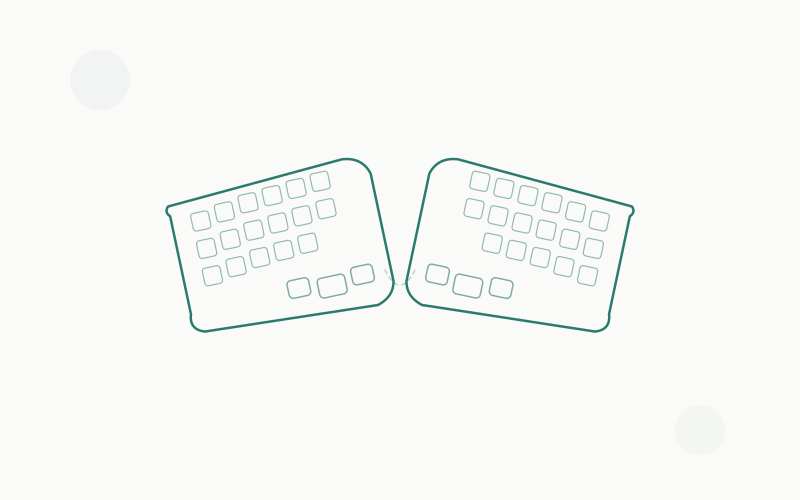
Your mouse hand gets the attention, but your keyboard hand is working just as hard. A good ergonomic keyboard with a split or tented design reduces ulnar deviation (the outward angle of your wrists when typing on a standard keyboard). Pairing an ergonomic mouse with an ergonomic keyboard addresses strain on both hands simultaneously.
Take Microbreaks
The 20-20-20 rule isn’t just for eyes: every 20 minutes, take your hands off the mouse and keyboard for 20 seconds. Stretch your fingers, rotate your wrists, and let the muscles reset. Research from the National Institute for Occupational Safety and Health (NIOSH) shows that frequent short breaks are more effective at preventing RSI than infrequent long breaks.
Wrist Position Is Everything
Your wrist should be in a neutral position while mousing — not bent up, not bent down, not angled to the side. If your desk is too high, your wrist bends upward. If it’s too low, you compensate by lifting your shoulder. Use our wrist pain from typing fix guide and ergonomic desk setup checklist to get your entire workstation dialed in.
Strengthen, Don’t Just Rest
Counterintuitively, rest alone doesn’t fix RSI — strengthening does. Simple exercises like wrist curls, finger extensions with a rubber band, and grip strengthening build the muscles that protect your tendons and nerves. A hand therapist or occupational therapist can provide a personalized exercise program.
Alternate Between Devices
Some ergonomic experts recommend alternating between different pointing devices throughout the day — using a vertical mouse in the morning and a trackball in the afternoon, for example. This distributes strain across different muscle groups rather than overloading one set.
Buyer’s Guide: What to Look for in an Ergonomic Mouse
Hand Size
This is the most overlooked factor. An ergonomic mouse that’s too large forces you to over-extend your fingers; one that’s too small cramps your hand into a claw grip. To measure your hand:
- Measure from the base of your palm (where it meets your wrist) to the tip of your middle finger
- Under 17.5 cm: Small to medium — Logitech Lift, Razer Pro Click Mini
- 17.5-19 cm: Medium — Most mice on this list will work
- Over 19 cm: Large — Logitech MX Vertical, Kensington Expert
Grip Style
- Palm grip (full hand rests on mouse): Best served by larger mice — MX Vertical, MX Ergo
- Claw grip (fingers arched, palm rests on back): Works with most mice; Lift and Pro Click Mini suit this well
- Fingertip grip (only fingers touch): Compact mice work best — Pro Click Mini, Anker
DPI Requirements
- General office work: 800-1600 DPI is fine
- High-res multi-monitor setups: 2000-4000 DPI preferred
- Design/creative work: Variable DPI with a precision mode toggle
Connectivity
- Bluetooth: Universal compatibility, no dongle required. Slight latency (~10ms) that’s imperceptible for office work.
- 2.4GHz dongle: Lower latency, more reliable connection, but uses a USB port.
- Wired: Zero latency, zero battery concerns, but cables can be annoying.
- Multi-device: Essential if you use more than one computer. Logitech excels here.
Frequently Asked Questions
Can an ergonomic mouse actually fix carpal tunnel syndrome?
An ergonomic mouse can help manage symptoms and prevent progression, but it cannot cure an existing condition. Carpal tunnel syndrome involves compression of the median nerve in the carpal tunnel (a narrow passageway in the wrist). A vertical mouse reduces the forearm pronation that contributes to this compression, but if you have diagnosed CTS, you should see a doctor or occupational therapist for a comprehensive treatment plan that may include splinting, exercises, and potentially surgery.
How long does it take to get used to a vertical mouse?
Most people reach 80% of their normal productivity with a vertical mouse within 3-7 days of full-time use. Full comfort and speed typically arrive within 2-3 weeks. Trackball mice take longer: expect 2-4 weeks for basic comfort and 4-6 weeks for full proficiency. The key is to commit fully — switching back and forth between your old mouse and the new one extends the adaptation period significantly.
Is a vertical mouse or trackball better for wrist pain?
It depends on where your pain is. Vertical mice are best for pain caused by forearm pronation (the twisting motion of using a flat mouse). This includes inner forearm pain, wrist pain on the pinky side, and general forearm tension. Trackball mice are best for pain caused by repetitive arm movement — shoulder strain, elbow issues, and pain that worsens with mouse movement distance. If you have both, alternating between a vertical mouse and a trackball can address multiple strain patterns.
Can I use an ergonomic mouse for gaming?
Casual gaming, yes. Competitive gaming, probably not. Vertical mice and trackballs sacrifice some speed and precision compared to traditional gaming mice, and the form factor isn’t optimized for the rapid, repetitive movements that gaming demands. The Razer Pro Click Mini is the closest to a dual-purpose option, with its 12,000 DPI sensor and low weight.
Should I get a wireless or wired ergonomic mouse?
For office work, wireless is almost always the better choice — the freedom of movement is worth the negligible latency trade-off. The only reasons to prefer wired are: (a) you never want to think about batteries or charging, (b) your desk setup makes cable management easy, or (c) you work in an environment where wireless devices aren’t permitted. The Anker Ergonomic Vertical ($20, wired) is perfect for testing the concept before investing in a wireless option.
Do I need a wrist rest with an ergonomic mouse?
With a vertical mouse, generally no — the handshake position means your wrist is elevated naturally. With a standard or sculpted ergonomic mouse, a wrist rest can help maintain a neutral wrist position. With a finger trackball (Kensington Expert), the included wrist rest is essential. Never rest your wrist while actively mousing — the wrist rest is for idle moments. Pressing your wrist into a rest while moving a mouse creates a pressure point that can worsen carpal tunnel symptoms.
The Bottom Line
The right ergonomic mouse for you depends on your pain points (literally), your hand size, and how much you’re willing to relearn:
- New to ergonomic mice? → Logitech MX Vertical (right-handed, medium/large hands) or Logitech Lift (small/medium hands, left-handed option)
- Want to eliminate arm movement? → Logitech MX Ergo (thumb trackball) or Kensington Expert (finger trackball)
- Need something travel-friendly? → Razer Pro Click Mini
- Testing the concept on a budget? → Anker Ergonomic Vertical Mouse ($20)
- Want minimal change? → Microsoft Sculpt Ergonomic Mouse or Logitech MX Master 3S
Don’t wait until you have pain to make the switch. RSI is easier to prevent than to treat. Pair your ergonomic mouse with an ergonomic keyboard, use our wrist pain fix guide to address existing discomfort, and check our ergonomic desk setup checklist to make sure your entire workstation is supporting your body instead of fighting it.
Last updated: May 2026. We continuously re-test our picks and update recommendations as new models release and prices change.
Cowlpane may earn a commission from qualifying purchases. This doesn’t affect our editorial independence — we recommend what we’d buy with our own money.