Your wrists hurt. They’ve been hurting for a while — maybe a dull ache at the end of a long workday, maybe a sharp twinge when you reach for the mouse, maybe a numbness that creeps into your fingers during late-night coding sessions. You’ve ignored it, shaken it out, switched hands for the mouse, and told yourself it’ll pass.
It won’t pass. Not on its own.
Wrist pain from typing is one of the most common repetitive strain injuries in the modern workforce. It affects programmers, writers, designers, gamers, data entry workers — anyone who spends hours daily interacting with a keyboard and mouse. Left unaddressed, it can progress from occasional discomfort to chronic pain, from a minor annoyance to a career-threatening condition like carpal tunnel syndrome.
The good news: most typing-related wrist pain is fixable without surgery, medication, or drastic lifestyle changes. The fixes are almost always some combination of posture correction, equipment changes, and targeted exercises. This guide covers all three — in detail, with specific recommendations, and grounded in established ergonomic research rather than internet myths.
What’s Actually Causing Your Wrist Pain
Before you can fix it, you need to understand what’s happening. Wrist pain from typing isn’t a single condition — it’s a symptom that can stem from several different underlying causes.
Carpal Tunnel Syndrome (CTS)
The most well-known culprit. The carpal tunnel is a narrow passageway in your wrist formed by bones and a ligament, through which the median nerve passes. When the tendons around this nerve swell (from repetitive motion, sustained awkward positions, or other factors), they compress the nerve — causing pain, tingling, numbness, and weakness in the thumb, index, and middle fingers.
Key indicators: Numbness or tingling in the first three fingers (thumb, index, middle). Symptoms often worse at night. A feeling of weakness when gripping objects.
Tendinitis
Inflammation of the tendons — the fibrous cords connecting muscle to bone. In the wrist, tendinitis typically affects the tendons on the back of the hand (extensor tendinitis) or the thumb side (De Quervain’s tenosynovitis). It’s caused by repetitive motion, especially when combined with awkward wrist angles.
Key indicators: Pain on the back of the wrist or at the base of the thumb. Worsens with movement. Sometimes accompanied by a grinding or crackling sensation.
Repetitive Strain Injury (RSI)
A broad category covering any pain caused by repetitive movement patterns. RSI in the wrist and forearm can affect muscles, tendons, nerves, and connective tissue. It’s the umbrella term for the various specific conditions that typing can cause.
Key indicators: Gradual onset of pain, stiffness, or weakness. Initially only during typing; eventually present during other activities or at rest.
Ulnar Nerve Compression
The ulnar nerve runs along the pinky side of your wrist. Resting your wrist on a hard surface (like a desk edge) while typing can compress this nerve, causing numbness or tingling in the ring and pinky fingers. This is often misidentified as carpal tunnel, but the affected fingers are different.
Key indicators: Numbness in the ring and pinky fingers. Pain or tingling on the outer edge of the hand. Symptoms worse when leaning on elbows or pressing wrists against hard surfaces.
Muscle Fatigue and Overuse
Sometimes the pain isn’t from a specific injury but from simple overuse — your forearm muscles are exhausted from maintaining a static position for hours. The muscles that control finger movement originate in the forearm, and keeping them engaged continuously (as typing does) can produce aching, tightness, and tenderness.
Key indicators: Diffuse aching in the forearm and wrist. Improves with rest. No numbness or tingling.
The Root Cause: It’s Almost Always Your Setup
Here’s the uncomfortable truth: your wrist pain is probably not caused by typing itself. It’s caused by how you type — specifically, the angles and positions your wrists are forced into by your desk, chair, keyboard, and mouse setup.
A properly configured workstation puts your wrists in a neutral position — straight, flat, and aligned with your forearms. An improperly configured workstation forces your wrists into extension (bent upward), flexion (bent downward), or ulnar/radial deviation (bent sideways). Sustain any of these non-neutral positions for hours daily, and pain is not just possible — it’s inevitable.
The most common setup problems:
- Keyboard too high. When your keyboard sits above elbow height, your wrists extend (bend upward) to reach the keys. This is the single most common cause of typing-related wrist pain.
- Keyboard tilted upward. Those flip-out feet on the back of your keyboard? They make the problem worse by increasing wrist extension. Stop using them.
- Mouse too far away. Reaching for a mouse that’s positioned too far to the side or too far forward creates sustained shoulder tension and ulnar deviation in the wrist.
- Chair too low (or too high). If your chair height doesn’t match your desk height, your arms can’t achieve the proper angle.
- Wrists resting on hard surfaces. Pressing your wrist or palm against a desk edge while typing compresses nerves and tendons.
How to Fix Your Typing Posture (Step by Step)
This section is the core of the guide. Follow each step and you’ll eliminate the most common mechanical causes of wrist pain.
Step 1: Set Your Chair Height Correctly
Your chair is the foundation. Everything else adjusts to match it.
- Sit with your feet flat on the floor (or on a footrest).
- Your thighs should be roughly parallel to the floor.
- Your knees should be at approximately 90° (or slightly more open).
If your chair doesn’t adjust to the right height for your desk, the chair needs to change — not your posture. An adjustable-height chair with a range that puts your elbows at desk level is essential. See our ergonomic desk setup checklist for a complete workstation configuration guide.
Step 2: Position Your Keyboard at Elbow Height (or Slightly Below)
This is the single most impactful change you can make.
When your hands are on the keyboard, your elbows should be at approximately 90° (or slightly more open — 100° to 110° is acceptable). Your forearms should be roughly parallel to the floor or angled very slightly downward. Your wrists should be straight — not bent upward, not bent downward, just a straight line from forearm through wrist to hand.
If your desk is too high (which most standard desks are, at 29"–30", for most people): consider a keyboard tray that mounts below the desk surface, lowering your typing surface by 2"–4". Alternatively, raise your chair and add a footrest.
If your keyboard has flip-out feet: retract them. A flat keyboard, or even a keyboard tilted slightly away from you (negative tilt), keeps your wrists more neutral than a keyboard tilted toward you.
Step 3: Position Your Mouse Next to Your Keyboard
Your mouse should be at the same height as your keyboard and immediately adjacent to it — not six inches to the right, not on a different surface, not requiring you to reach. Every inch of lateral reach adds strain to your shoulder and wrist.
If you use a full-size keyboard with a number pad, consider switching to a tenkeyless (TKL) or 75% keyboard. The number pad pushes your mouse further to the right, increasing reach distance. If you need a number pad, use a separate one placed to the left of your keyboard.
Step 4: Keep Your Wrists Floating
This is counterintuitive for most people, but it’s critical: don’t rest your wrists on anything while actively typing. Your wrists should float above the keyboard, with your arms supported at the elbows (by armrests) or shoulders (by your skeletal structure).
Resting your wrists creates a pivot point — your wrists become the fulcrum for finger movement, forcing them into extension and deviation with every keystroke. Floating wrists allow your hands to move freely, with the motion originating from your forearms and shoulders rather than your wrist joints.
This feels awkward at first. Your forearms may fatigue more quickly as the muscles adapt to supporting your hands. This is normal and temporary — give it two to three weeks.
Step 5: Type with Relaxed Hands
Many people type with more force and tension than necessary. Check yourself:
- Are your fingers hovering tensely above the keys? Relax them.
- Are you striking keys with more force than needed? Lighten your touch.
- Are your thumbs pressing down on the spacebar while your other fingers type? Let the non-active thumb rest.
- Are your shoulders creeping up toward your ears? Drop them.
Typing should feel light and effortless. If your hands look like they’re clawing the keyboard, something is wrong.
Step 6: Take Breaks. Actually Take Them.
Every ergonomist agrees on this, and almost nobody does it: take a break from typing every 30–45 minutes. Stand up, shake out your hands, stretch your forearms, look at something far away. Even 60 seconds of movement resets the cycle of sustained static posture that causes RSI.
The 20-20-20 rule is a good baseline: every 20 minutes, look at something 20 feet away for 20 seconds, and take a longer break every hour. If you struggle to remember, use a timer app or the sit-stand reminder on your desk’s keypad.
The Wrist Rest Debate: Helpful or Harmful?
This is one of the most contentious topics in ergonomics, and the answer is more nuanced than most sources suggest.
The Case Against Wrist Rests
Ergonomic purists argue that wrist rests are harmful because they:
- Create a pressure point against the carpal tunnel, compressing nerves and tendons.
- Encourage resting the wrists while typing (as discussed above, this creates a pivot point).
- Can force ulnar deviation if the wrist rest doesn’t perfectly match your typing width.
These concerns are valid — when wrist rests are used while actively typing.
The Case For Wrist Rests
Wrist rests provide a benefit during pauses between typing. When you’re reading the screen, thinking, or waiting — moments when your hands are at rest but still on the keyboard — a wrist rest gives your forearms a break from the effort of floating. The key distinction is resting vs. typing: rest your wrists while paused, float them while typing.
A wrist rest also provides a tactile cue for hand positioning, helping you maintain a consistent distance from the keyboard without looking down.
The Verdict
Use a wrist rest as a resting platform, not a typing platform. A quality wrist rest positioned in front of your keyboard (not under your wrists while typing) is a net positive for most users. Choose a padded, contoured option made of memory foam or gel — not a hard plastic bar.
For keyboard wrist rests, match the width to your keyboard. For mouse wrist rests, a compact gel pad that supports the heel of your palm (not the wrist itself) is ideal.
Recommended wrist rests:
- Gimars Memory Foam Keyboard Wrist Rest — Affordable, comfortable, available in multiple sizes. ~$12
- 3M Gel Wrist Rest — A classic, durable option with a smooth gel surface. ~$15
- HyperX Wrist Rest — Memory foam with cooling gel, good for extended sessions. ~$20
Ergonomic Keyboards That Actually Help
Switching to an ergonomic keyboard can dramatically reduce wrist strain — but not all “ergonomic” keyboards are created equal. Here’s what to look for and which models deliver real benefits.
What Makes a Keyboard Ergonomic?
Three design elements matter:
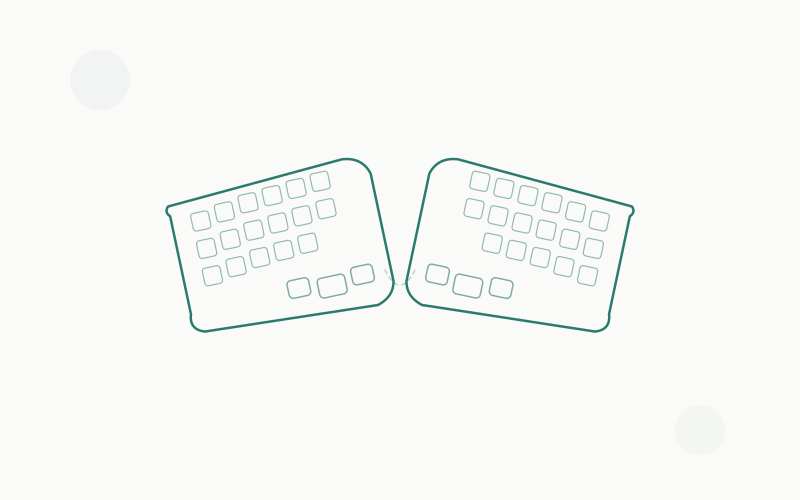
Split design. A keyboard that separates into two halves (or has a significant gap/angle between them) allows each hand to approach the keys straight-on, eliminating ulnar deviation. This is the single most impactful ergonomic keyboard feature.
Tenting/tilting. The ability to angle each half so the thumb side is higher than the pinky side (tenting) reduces forearm pronation — the rotational strain of keeping your palms facing down. Even a modest 10°–15° tent angle provides measurable relief.
Negative tilt or flat profile. A keyboard that sits flat or tilts slightly away from you (front edge higher than back) keeps your wrists in a more neutral position than a positively tilted keyboard.
Recommended Ergonomic Keyboards
Best overall: Kinesis Freestyle Pro
A fully split mechanical keyboard that lets you position each half independently. The two halves connect via a cable, and optional tenting accessories allow adjustable angles up to 15°. It uses Cherry MX switches (available in Brown, Red, or Blue) for a premium typing feel. The split design is the primary benefit — it eliminates ulnar deviation immediately.
Check Price → — ~$150
Best budget: Logitech ERGO K860
A one-piece split keyboard with a curved, tented design and an integrated wrist rest. It’s not fully split (you can’t separate the halves), but the fixed split angle and gentle tent reduce strain significantly compared to a standard keyboard. Wireless, comfortable, and well-built at a reasonable price.
Check Price → — ~$120
Best for programmers: ZSA Moonlander
A fully split, columnar-stagger, ortholinear mechanical keyboard with per-key RGB, hot-swappable switches, and fully adjustable tenting via integrated thumb-platform legs. The Moonlander is a deep rabbit hole — it requires significant relearning of your typing habits — but for developers willing to invest the time, the ergonomic benefits are profound. The columnar layout (keys aligned in straight columns rather than staggered rows) matches your natural finger movements more closely than any traditional layout.
Check Price → — ~$365
For a complete breakdown of ergonomic keyboard options, see our guide to the best ergonomic keyboards for wrist pain.
Vertical Mice and Trackballs: Your Mouse Might Be the Problem
If your wrist pain is concentrated on the mouse-hand side — particularly the back of the hand, the wrist, or the forearm — your mouse is likely a major contributor. Standard mice force your forearm into full pronation (palm facing down), which compresses the structures on the underside of your wrist and strains the forearm extensor muscles.
Vertical Mice
A vertical mouse rotates your hand into a “handshake” position (roughly 60°–90° from horizontal), which is the forearm’s natural resting position. This eliminates pronation, reduces pressure on the carpal tunnel, and relaxes the forearm extensors.
The adjustment period is short — most people feel comfortable within 2–3 days — and the relief can be dramatic. If your wrist pain is primarily mouse-related, a vertical mouse is the single most effective equipment change you can make.
Recommended vertical mice:
- Logitech MX Vertical — The gold standard. 57° angle, excellent sensor, USB-C charging, Bluetooth + USB receiver. ~$90
- Anker Wireless Vertical Mouse — 80% of the Logitech’s quality at 30% of the price. Excellent budget option. ~$25
- Evoluent VerticalMouse 4 — A steeper angle (closer to 90°) and multiple thumb buttons. Preferred by some users with severe pronation issues. ~$100
Trackballs
Trackballs eliminate wrist movement entirely — your hand stays stationary while your thumb or fingers move the ball to control the cursor. For users with wrist pain from mouse movement (as opposed to mouse grip), trackballs can provide complete relief.
Recommended trackballs:
- Logitech ERGO M575 — Thumb-operated, comfortable for hours, minimal desk space. The best starter trackball. ~$45
- Kensington Expert Mouse — A large finger-operated trackball with a scroll ring. Precise and comfortable for detailed work. ~$55
Exercises and Stretches for Wrist Pain Relief
Equipment and posture changes address the cause. Exercises address the damage that’s already been done and build resilience against future injury. These stretches and exercises are recommended by physical therapists and ergonomists for typing-related wrist pain.
Wrist Flexor Stretch
- Extend your arm in front of you with your palm facing up.
- Using your other hand, gently pull your fingers downward (toward the floor) until you feel a stretch along the inside of your forearm.
- Hold for 15–20 seconds.
- Repeat 3 times per side.
When: Before and after typing sessions, and during breaks.
Wrist Extensor Stretch
- Extend your arm in front of you with your palm facing down.
- Using your other hand, gently press the back of your hand downward until you feel a stretch along the top of your forearm.
- Hold for 15–20 seconds.
- Repeat 3 times per side.
When: Same as flexor stretch — before, after, and during breaks.
Fist Clenches
- Make a tight fist.
- Hold for 5 seconds.
- Open your hand wide, spreading your fingers as far apart as possible.
- Hold for 5 seconds.
- Repeat 10 times.
Purpose: Improves blood flow and reduces the static tension that accumulates during typing.
Tendon Gliding Exercises
This sequence moves the tendons through their full range of motion, preventing adhesions and maintaining mobility:
- Start with your fingers extended straight.
- Bend your fingers at the middle and end joints (hook fist).
- Make a full fist.
- Make a “tabletop” position (fingers bent at the knuckles only, straight otherwise).
- Make a straight fist (fingers curled at all joints but thumb extended).
Hold each position for 3–5 seconds. Repeat the full sequence 5 times. This exercise is particularly important for carpal tunnel prevention.
Nerve Gliding Exercises
For numbness and tingling (nerve compression symptoms), these gentle nerve-mobilizing exercises can help:
Median nerve glide:
- Start with your arm at your side, elbow bent, wrist neutral, fingers in a fist.
- Straighten your fingers.
- Extend your wrist (bend it backward).
- Extend your thumb to the side.
- Rotate your forearm so your palm faces up.
- Gently straighten your elbow.
Move slowly through each step, pausing if you feel tingling. Don’t push through pain. This exercise should be done gently — it’s mobilization, not stretching.
Forearm Strengthening
Weak forearm muscles fatigue faster and are more prone to injury. Simple strengthening exercises:
Wrist curls: Hold a light weight (2–5 lbs) or a water bottle. Rest your forearm on a table with your wrist hanging over the edge, palm up. Curl the weight upward, then lower. 3 sets of 12 reps.
Reverse wrist curls: Same position, but with your palm facing down. Extend the weight upward, then lower. 3 sets of 12 reps.
Squeeze ball: Squeeze a stress ball or hand grip exerciser for 5 seconds, release. 3 sets of 15 reps. This builds grip strength and endurance.
When to See a Doctor
Not all wrist pain can be fixed with ergonomic adjustments and exercises. See a healthcare professional if you experience any of the following:
Red Flags — See a Doctor Soon
- Numbness or tingling that doesn’t improve after 2–3 weeks of ergonomic corrections.
- Weakness in grip strength — dropping objects, difficulty opening jars, trouble with fine motor tasks.
- Pain that wakes you up at night — nighttime symptoms are a hallmark of carpal tunnel syndrome progression.
- Visible swelling, redness, or warmth around the wrist joint.
- Pain after a specific injury — a fall, impact, or sudden wrenching motion.
When to Consider a Specialist
If your primary care doctor suspects carpal tunnel syndrome or another specific condition, they may refer you to:
- A hand/wrist orthopedist — for structural issues, imaging, and surgical evaluation.
- A physical therapist — for targeted rehabilitation, splinting, and activity modification.
- A neurologist — for nerve conduction studies to confirm or rule out nerve compression.
Medical Treatments
Depending on the diagnosis, treatments may include:
- Wrist splinting — especially at night, to keep the wrist neutral during sleep.
- Corticosteroid injections — to reduce inflammation around compressed nerves or tendons.
- Physical therapy — structured exercises, manual therapy, and ergonomic coaching.
- Surgery — in severe or unresponsive cases, carpal tunnel release surgery has a high success rate (85%–90%) and a relatively short recovery period.
The critical message: Early intervention dramatically improves outcomes. Wrist pain that’s caught and addressed in the tendinitis or early RSI stage responds well to conservative treatment (posture, equipment, exercises). Wrist pain that’s ignored for months or years may require medical intervention. Don’t wait.
The Complete Wrist Pain Prevention Checklist
Here’s a consolidated action list. If you do everything on this list, you’ll eliminate the vast majority of typing-related wrist pain risk factors.
Workstation setup:
- Chair height adjusted so elbows are at keyboard level
- Keyboard at or slightly below elbow height
- Keyboard flat or negatively tilted (no flip-out feet)
- Mouse immediately adjacent to keyboard, same height
- Monitor at eye level, arm’s length away
- Wrists floating while typing, resting only during pauses
Equipment:
- Consider an ergonomic split keyboard if ulnar deviation is an issue
- Consider a vertical mouse if mouse-hand pain is present
- Wrist rest for pauses (not for active typing)
- Tenkeyless keyboard to reduce mouse reach distance
Habits:
- Break every 30–45 minutes
- Stretches before, during, and after typing sessions
- Light typing force — no hammering
- Relaxed shoulders, unclenched hands
- 20-20-20 rule for eyes (and wrists)
Ongoing:
- Forearm strengthening exercises 3x/week
- Monitor symptoms — any changes in sensation, strength, or pain patterns
- Annual ergonomic self-assessment (has anything changed in your setup?)
For a full workstation configuration guide that covers your entire desk setup — not just wrist-related adjustments — see our ergonomic desk setup checklist. And if you’re also dealing with back pain from sitting, our guide on how to reduce back pain from sitting covers the chair and posture side of the equation.
The Bottom Line
Wrist pain from typing is common, but it’s not inevitable. The overwhelming majority of cases trace back to the same handful of causes: keyboard too high, wrists not neutral, mouse too far away, no breaks, no stretches. Fix the setup, build the habits, and the pain resolves.
The equipment matters, but less than you think. A $25 vertical mouse and a correctly positioned desk will do more for your wrists than a $400 ergonomic keyboard on a poorly configured workstation. Start with the free fixes (posture, keyboard angle, breaks, stretches), then layer in equipment upgrades based on where your specific pain is coming from.
And if the pain persists despite doing everything right — see a doctor. There’s no ergonomic keyboard in the world that can fix a compressed nerve that needs medical attention. The sooner you get a diagnosis, the better the outcome.
Your wrists have to last your entire career. Take care of them now.
Related guides: Best Ergonomic Keyboards for Wrist Pain · Ergonomic Desk Setup Checklist · How to Reduce Back Pain from Sitting